
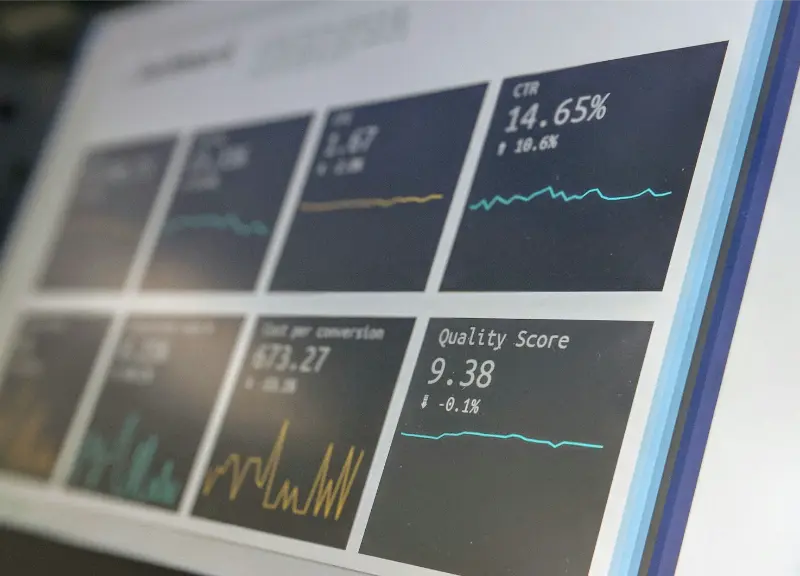
Ollama exposes performance metrics via its API and logs that can be scraped by Prometheus and visualised in Grafana. Monitoring Ollama in production lets you track request volume, response latency, tokens per second, GPU utilisation, and model load patterns — essential for understanding your deployment’s health and capacity.
What Ollama Exposes
Ollama does not natively expose a Prometheus metrics endpoint, but every API response includes rich performance metadata that you can capture and export. The /api/generate and /api/chat responses include: eval_count (output tokens), eval_duration (inference time in nanoseconds), prompt_eval_count (input tokens), prompt_eval_duration, and total_duration. The /api/ps endpoint shows which models are loaded, their VRAM usage, and their keep-alive expiry. These are the inputs to a monitoring setup.
Option 1: Prometheus Exporter (Python)
pip install prometheus-client requests#!/usr/bin/env python3
# ollama_exporter.py — scrapes Ollama API and exposes Prometheus metrics
import time, requests
from prometheus_client import start_http_server, Gauge, Counter
OLLAMA = 'http://localhost:11434'
# Metrics
models_loaded = Gauge('ollama_models_loaded', 'Number of models currently in memory')
vram_used = Gauge('ollama_vram_used_bytes', 'VRAM used by loaded models', ['model'])
model_info = Gauge('ollama_model_info', 'Model metadata', ['model', 'size'])
def collect():
try:
# Models currently loaded
ps = requests.get(f'{OLLAMA}/api/ps', timeout=5).json()
running = ps.get('models', [])
models_loaded.set(len(running))
for m in running:
vram_used.labels(model=m['name']).set(m.get('size_vram', 0))
# All available models
tags = requests.get(f'{OLLAMA}/api/tags', timeout=5).json()
for m in tags.get('models', []):
model_info.labels(model=m['name'], size=str(m['size'])).set(1)
except Exception as e:
print(f'Collection error: {e}')
if __name__ == '__main__':
start_http_server(9090) # Expose metrics on :9090
print('Ollama exporter running on :9090')
while True:
collect()
time.sleep(15) # Scrape every 15 secondsOption 2: Middleware Proxy for Request Metrics
# ollama_proxy.py — transparent proxy that records metrics for every request
from fastapi import FastAPI, Request, Response
from prometheus_client import Counter, Histogram, generate_latest
import httpx, time

app = FastAPI()
OLLAMA = 'http://localhost:11434'

requests_total = Counter('ollama_requests_total', 'Total requests', ['model', 'endpoint'])
request_duration = Histogram('ollama_request_duration_seconds', 'Request duration', ['model'])
tokens_total = Counter('ollama_tokens_total', 'Total tokens generated', ['model', 'type'])

@app.api_route('/{path:path}', methods=['GET','POST','DELETE'])
async def proxy(request: Request, path: str):
    start = time.time()
    body = await request.body()

    async with httpx.AsyncClient() as client:
        resp = await client.request(
            method=request.method,
            url=f'{OLLAMA}/{path}',
            content=body,
            headers=dict(request.headers)
        )

    # Parse response for metrics if it's a chat/generate call
    if path in ('api/generate', 'api/chat') and not resp.headers.get('transfer-encoding'):
        try:
            import json
            data = resp.json()
            model = data.get('model', 'unknown')
            requests_total.labels(model=model, endpoint=path).inc()
            request_duration.labels(model=model).observe(time.time() - start)
            tokens_total.labels(model=model, type='output').inc(data.get('eval_count', 0))
            tokens_total.labels(model=model, type='input').inc(data.get('prompt_eval_count', 0))
        except Exception:
            pass

    return Response(content=resp.content, status_code=resp.status_code,
                    headers=dict(resp.headers))

@app.get('/metrics')
async def metrics():
    return Response(generate_latest(), media_type='text/plain')

# Run: uvicorn ollama_proxy:app --port 11435
# Point your clients at :11435 instead of :11434
Prometheus Configuration
# prometheus.yml
scrape_configs:
  - job_name: 'ollama'
    static_configs:
      - targets: ['localhost:9090']  # exporter
    scrape_interval: 15s

  - job_name: 'ollama_proxy'
    static_configs:
      - targets: ['localhost:11435']  # proxy metrics
    metrics_path: '/metrics'
    scrape_interval: 15s
Grafana Dashboard
Import the following panel queries into a new Grafana dashboard after connecting it to your Prometheus data source:
# Models currently loaded
ollama_models_loaded

# VRAM usage by model
ollama_vram_used_bytes

# Request rate (per minute)
rate(ollama_requests_total[1m]) * 60

# Average tokens per second
rate(ollama_tokens_total{type="output"}[5m]) /
  rate(ollama_request_duration_seconds_sum[5m])

# P95 request latency
histogram_quantile(0.95, rate(ollama_request_duration_seconds_bucket[5m]))
Why Monitor Ollama in Production
Running Ollama as infrastructure — serving a team, powering a Slack bot, or handling application traffic — requires operational visibility beyond just checking that the process is running. You need to know: how many requests per minute is the service handling, what is the typical response latency at P50 and P95, is VRAM being efficiently utilised or are models constantly loading and unloading, which models get the most traffic, and are there latency spikes correlated with specific request types? This operational data is what separates a reliable production deployment from a server you log into when someone complains that the AI is slow.
The monitoring setup in this article does not require any changes to Ollama itself — it works entirely by observing Ollama’s existing API responses and endpoints. The exporter approach scrapes the status endpoints on a schedule; the proxy approach intercepts requests transparently. Both give you Prometheus-compatible metrics that any standard monitoring stack can consume.
Deploying the Exporter as a Service
sudo nano /etc/systemd/system/ollama-exporter.service

# [Unit]
# Description=Ollama Prometheus Exporter
# After=ollama.service
#
# [Service]
# ExecStart=python3 /opt/ollama-exporter/ollama_exporter.py
# Restart=always
# User=ollama
#
# [Install]
# WantedBy=multi-user.target

sudo systemctl enable ollama-exporter
sudo systemctl start ollama-exporter
Recommended Grafana Dashboard Panels
A useful Ollama monitoring dashboard has four main sections. The first section shows service health: a single-stat panel for “Ollama Running” (1 if the health check passes, 0 if not), a count of currently loaded models, and total VRAM used. This section answers “is everything working?” at a glance. The second section shows throughput: requests per minute broken down by model and endpoint, total tokens per minute (input and output separately), and a time series showing request rate over the past 24 hours. The third section shows latency: a histogram heatmap of request duration, P50/P95/P99 latency gauges, and a scatter plot of latency versus prompt length for diagnosing whether slow responses correlate with large inputs. The fourth section shows model usage: which models are being used and how often, model load/unload events (indicating cold starts), and VRAM allocation per model over time.
Alerting
Configure Prometheus alerting rules for the conditions that require immediate attention. Ollama being down (health check failing for more than 2 minutes) is the most critical alert — route this to PagerDuty or a Slack alert channel immediately. High P95 latency (above 60 seconds for non-streaming requests) indicates a model is running on CPU instead of GPU or a memory pressure issue — alert and investigate. VRAM usage above 90% suggests models are competing for GPU memory and performance will degrade — alert so you can adjust keep-alive settings or OLLAMA_MAX_LOADED_MODELS. Request error rate above 1% indicates application issues connecting to Ollama — alert and check application logs for connection errors or timeout patterns.
Alternative: Lightweight Monitoring Without Prometheus
For simpler deployments where a full Prometheus/Grafana stack is overkill, a lightweight Python script that writes key metrics to a local SQLite database and serves a simple HTML dashboard is a practical alternative. The same metrics — request count, latency, token throughput, model load events — can be captured from the same API responses and stored locally with no external dependencies. For a personal Ollama server or a small team deployment, this approach gives you operational visibility without the operational overhead of running Prometheus and Grafana alongside Ollama. Only move to the full Prometheus stack when you need multi-host aggregation, long-term retention beyond a few weeks, or integration with an existing monitoring infrastructure.
Getting Started
Start with the simple exporter — copy the Python script, run it with python3 ollama_exporter.py, and verify metrics appear at http://localhost:9090/metrics. Add it to your Prometheus scrape config, import a Grafana dashboard, and you have operational visibility into your Ollama deployment in under 30 minutes. Add the proxy approach only if you need per-request token and latency metrics — it adds a network hop that affects all Ollama clients and requires updating their endpoint configuration, so only adopt it when the additional granularity justifies the added complexity.
Understanding the Metrics
The performance metadata in Ollama API responses is more detailed than many users realise. eval_duration is the time spent on actual token generation — this is the number you care about for model inference speed. prompt_eval_duration is the time spent processing the input prompt (filling the KV cache) — for short prompts this is negligible, but for very long prompts (RAG with large context) this can be a significant fraction of total request time. load_duration appears when a model has to load into memory — a non-zero value here indicates a cold start. If you see frequent cold starts in your metrics, your keep-alive setting is too short for your traffic pattern.
Tokens per second is derived from eval_count / eval_duration (converting nanoseconds to seconds). This number varies significantly based on: whether the model is running on GPU or CPU (GPU is typically 3–10x faster), the model’s parameter count and quantisation (smaller/more quantised = faster), and whether other models are competing for VRAM (splitting VRAM between models reduces speed). Tracking tokens per second over time lets you detect degradation — if it drops from your baseline after a system update, hardware change, or model swap, you have immediate evidence of the regression rather than relying on user complaints.
Custom Metrics for Specific Use Cases
Beyond the standard performance metrics, you may want to track application-specific metrics that give business context to the performance data. For a RAG application: retrieval latency (time spent on vector search) versus generation latency (time in Ollama), and retrieval quality scores if you implement feedback mechanisms. For a coding assistant: which programming languages appear most frequently in requests, completion acceptance rates if your UI tracks user accept/dismiss actions, and error rates on specific model tasks. For a document processing pipeline: documents processed per hour, extraction accuracy (if you have ground truth to compare against), and cost per document in compute time. These custom metrics sit alongside the Ollama performance metrics in the same Prometheus/Grafana setup and give you a complete picture of your application’s health and efficiency.
Multi-Instance Monitoring
If you run multiple Ollama instances — development and production, or multiple GPUs with separate Ollama processes — the same exporter approach works for each instance with different scrape targets and label sets. Prometheus’s label-based filtering lets you view metrics for all instances together or drill down to a specific one. Configure each exporter with a unique port and add an instance label to distinguish them in Grafana. The Grafana dashboard panels can then include a variable dropdown for selecting which Ollama instance to view, making it easy to compare performance across instances or spot when one is underperforming relative to others.
The Value of Observability for Local AI
Many local AI deployments start without any monitoring and accumulate operational debt — slow responses that are never investigated, models that keep cold-starting because keep-alive is misconfigured, VRAM that fills up and causes GPU memory errors, all discovered reactively when users complain rather than proactively through metrics. Adding even basic monitoring — the simple exporter from this article, a Grafana dashboard, and two or three alerts — converts your Ollama deployment from a black box into a measurable system. The investment is roughly two hours to set up and produces persistent value as long as the service runs. Treat it as standard infrastructure hygiene rather than an optional enhancement, and your local AI deployment will be significantly more reliable and easier to debug from day one.
Comparing Monitoring Approaches
The three monitoring approaches for Ollama — simple exporter (scrapes status endpoints), proxy (intercepts every request), and no-code (reading systemd journal) — represent different points on the complexity-visibility trade-off. The journal approach requires zero setup and gives you basic uptime information, but nothing about request patterns or performance. The exporter gives you model inventory, VRAM state, and service availability with about 50 lines of Python, making it the right starting point for most deployments. The proxy gives you per-request metrics including token counts and latency distributions, but adds a network hop and requires clients to use a different port. Choose the exporter for most production deployments and add the proxy only when you need the additional granularity for capacity planning or performance debugging of specific slow request patterns.
Practical Monitoring for Small Deployments
If running a full Prometheus/Grafana stack alongside Ollama feels like too much infrastructure overhead for your deployment size, a practical middle ground is a simple health check script and a structured log file. Log each request’s model name, token count, and duration as JSON to a file, and write a small dashboard script that reads the last N log lines and renders summary statistics in the terminal or a simple HTML page. This approach has zero infrastructure overhead, captures the metrics that matter most, and can be set up in under an hour. Graduate to Prometheus only when you need: historical retention beyond what fits in memory, alerting integration with PagerDuty or Slack, multi-host aggregation, or the ability to share dashboards across a team without sharing terminal access to the server. The lightweight approach is entirely appropriate for personal deployments and small teams where operational requirements do not justify the added complexity of a full monitoring stack.
The local AI ecosystem’s rapid maturation means the tools and patterns described across this article series are stable enough for production use today, while continuing to improve with each model and framework release. Whether you reach for Prometheus metrics, Spring AI abstractions, or direct API calls, the underlying Ollama inference layer remains the same consistent, well-documented foundation — making each piece of integration work you do today directly applicable to the next project you build on the same stack.
Monitoring is not glamorous but it is essential. Every hour you spend setting up good observability for your Ollama deployment saves multiples of that time in debugging sessions later. The tools are straightforward, the setup is not complex, and the operational confidence it provides — knowing your service is healthy before a user tells you it is not — is worth far more than the initial investment.